
Ways to improve PC performance for gaming
You can boost FPS and get rid of stuttering without replacing any hardware. Tuning Windows and in-game graphics settings can help you achieve a more stable frame rate. Results depend on your PC’s configuration.
Update your drivers and system
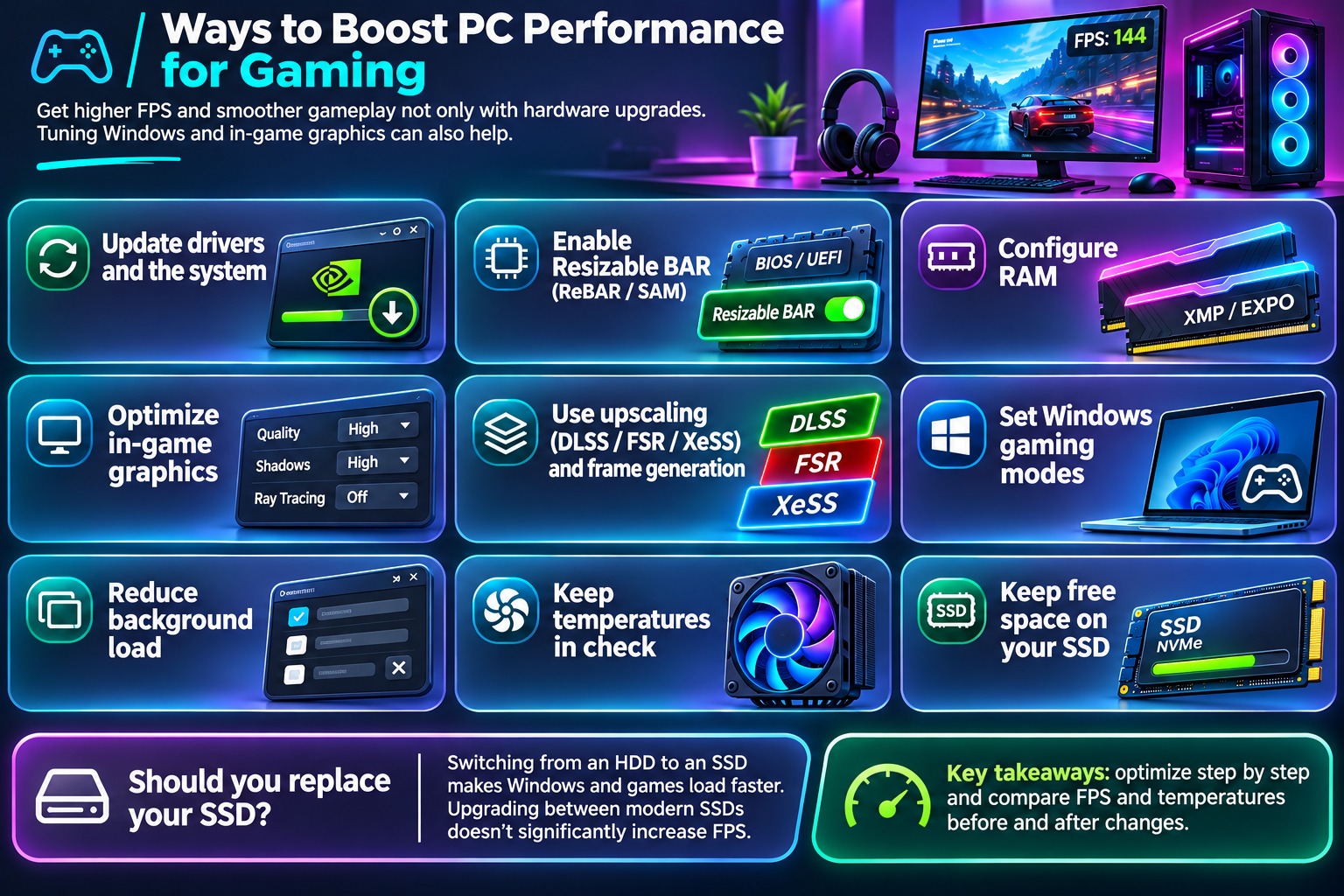
New graphics drivers often include bug fixes and game-specific optimizations. Download them from the manufacturers’ official websites or through their branded apps. It’s also a good idea to keep Windows and your chipset drivers up to date.
Enable resizable BAR
The Resizable BAR (ReBAR) feature, also known as Smart Access Memory (SAM), gives the processor broader access to video memory. If your hardware supports it, you can turn it on in the UEFI (BIOS). The FPS gain varies by game and graphics card.
Configure your RAM
XMP and EXPO profiles let your memory run at its rated speeds and timings. You can enable them in the UEFI (BIOS) if your hardware supports them. After setting one up, check your system’s stability, since memory overclocking can sometimes cause crashes.
Optimize your graphics settings
Dropping from “Ultra” to “High” often delivers a noticeable FPS boost with little loss in visual quality. Start by checking ray tracing, shadow quality, reflections, and volumetric effects. If you’re running low on video memory, try lowering texture quality. Average FPS isn’t the only thing that matters; avoiding sharp drops in frame rate is just as important.
Image upscaling and frame generation
DLSS, FSR, and XeSS build a high-resolution image from a smaller frame, reducing the load on your graphics card. Quality depends on the game and the mode you choose. Frame generation raises the displayed frame rate but doesn’t improve input responsiveness. If your base FPS is low, you may notice visual artifacts. In competitive games, low latency matters more than the highest number on the frame counter.
Windows settings
Under Settings → Gaming → Game Mode, you can turn on Game Mode, which limits some background activity. Windows 11 also offers “Optimizations for windowed games” under Settings → System → Display → Graphics. It can help with a number of games running in borderless windowed mode.
On a laptop, it’s best to plug in the charger while gaming and select the “Best performance” power mode in your power settings, if available. This increases power consumption and heat.
Minimize background load
Unneeded apps, browser tabs, screen recording, and background updates eat up RAM and CPU resources. Before launching a demanding game, close any extra programs and check your startup apps in Task Manager. Don’t disable your antivirus or system services just to gain FPS.
Temperature and cooling
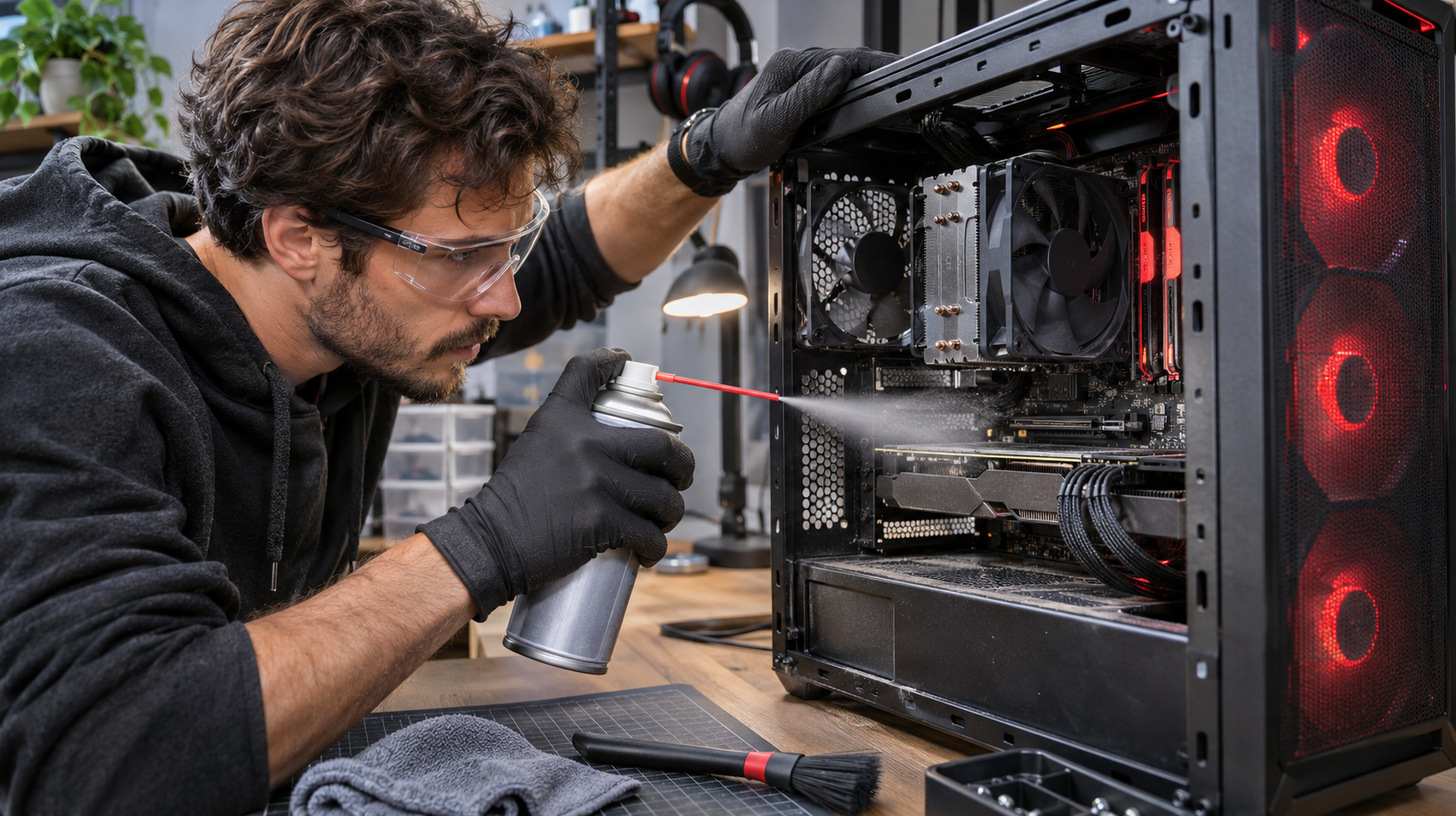
When a processor or graphics card overheats, the system may lower its clock speeds. You can avoid this throttling by clearing dust from vents and heatsinks, keeping airflow unobstructed, and checking that your fans are working. Always shut down your computer and unplug it from power before cleaning.
Free space on your SSD
A nearly full drive may write data more slowly and cause problems with updates. Try to leave some free space, such as around 10–20% of the drive’s capacity, though the amount you need depends on the model and how you use it. Deleting games you no longer play and temporary files, or moving large data elsewhere, helps keep your drive from filling up.
Is upgrading your SSD worth it?
Switching from a hard drive to an SSD significantly speeds up Windows and game load times. A fast NVMe drive can shorten load times in supported games, but moving between modern SSDs rarely increases FPS in any noticeable way. To raise your frame rate, it’s more important to identify the bottleneck, whether that’s your graphics card, processor, or RAM.
It’s best to optimize step by step, comparing your frame rate and temperatures before and after each change.